Introduction
Gmail templates — previously called "canned responses" — let you save pre-written emails and insert them into any compose window in seconds. For business owners, sales reps, and support teams sending the same types of emails repeatedly, the time savings add up fast. According to the Microsoft 2023 Work Trend Index, the top 25% of email users spend 8.8 hours per week on email — which makes any tool that cuts repetitive writing worth using.
The catch? Gmail templates are disabled by default, buried inside Advanced Settings, and come with several quirks that trip up even experienced users. The subject line behaves unexpectedly. There's no mobile access, and native team sharing doesn't exist at all.
This guide covers how to enable, create, edit, and auto-send Gmail templates. It also addresses those limitations head-on — so you can decide whether the native feature fits your workflow or whether it's time to look elsewhere.
Key Takeaways
- Gmail templates must be manually enabled in Advanced Settings before they appear in the compose window
- Templates are desktop-only — the iOS and Android apps don't surface this feature
- The template name becomes the subject line on insert — changing it before sending is easy to forget
- Gmail caps templates at roughly 50 per account, after which behavior becomes unreliable
- Templates work well for recurring one-to-one emails — e-commerce marketing at scale needs a dedicated platform
How to Set Up and Create Gmail Email Templates
Important: This entire process is desktop-only. Gmail templates cannot be enabled or accessed from the iOS or Android app.
Enable Gmail Templates
Before any template option appears in your compose window, you need to flip one switch — and most users miss it entirely.
- Open Gmail on a computer
- Click Settings → See all settings
- Open the Advanced tab
- Find Templates → click Enable
- Click Save Changes
Gmail reloads, and the template menu becomes available inside your compose window. This setup only needs to happen once per account.
Create Your First Template
Once templates are enabled:
- Click Compose
- Write your email body — leave the To field empty, and delete your signature from the draft (Gmail appends it automatically on send, so leaving it in creates a doubled signature)
- Click the three-dot More Options menu at the bottom of the compose window
- Hover over Templates → Save draft as template → Save as new template
- Give it a name → click Save
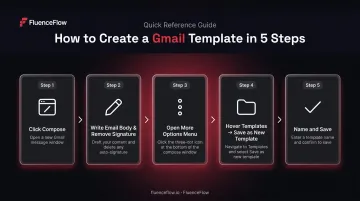
Your template name becomes the subject line on insert — so how you name it shapes how you work with it every day. Two approaches:
- Use the actual intended subject line as the name — convenient on insert, but harder to organize as your library grows
- Use a descriptive internal label (e.g., "Sales – Post-Demo Follow-Up") — easy to browse, but you'll need to update the subject line every time before sending
If you're building more than five templates, the descriptive label approach scales better. Whichever you choose, commit to it — a mixed library gets confusing fast.
Insert a Saved Template
- Click Compose or open a Reply
- Click the three-dot More Options menu
- Hover over Templates → under Insert template, select the one you want
- It populates the message body instantly
Before sending, update the subject line and add the recipient — templates store neither, so missing this sends a blank subject to the wrong (or no) address.
How to Edit, Delete, and Auto-Send Gmail Templates
Editing an Existing Template
Gmail has no dedicated "edit" button. To update a template:
- Open a compose window → insert the template you want to change
- Make your edits directly in the draft
- Click More Options → Templates → Save draft as template → Overwrite Template
- Select the existing template name → click Save
Note: there's no rename function. To rename a template, you have to save a new one with the correct name and delete the old one.
Deleting a Template
Open a compose window → More Options → Templates → Delete template → select the template → confirm. This is permanent — deleted templates cannot be recovered, and there is no version history or rollback.
Setting Up Auto-Send via Filters
Beyond manual sending, Gmail can automatically reply with a template whenever an incoming email matches a filter — handy for responding to contact form submissions, order inquiries, or any predictable inbound message type.
- In the Gmail search bar, click Show search options
- Enter your criteria (sender address, subject keyword, etc.)
- Click Create filter → check Send template → choose the template → Create filter
Broad filter criteria will trigger auto-replies to emails you didn't intend to respond to — test your criteria on a small sample before activating the filter.
Tips for Writing Gmail Templates That Actually Get Replies
Most template problems are avoidable. These five habits keep your library clean, your sends professional, and your replies coming in.
Use jarring placeholders like [FIRST NAME] or [COMPANY] — all caps, inside brackets. Subtle placeholders get sent verbatim. Make them impossible to overlook on purpose.
Keep each template to one purpose. A flexible multi-use template fits no situation perfectly. If two use cases feel similar, build two separate templates — it takes five minutes and saves every awkward send after.
Tone should match the relationship stage. Cold outreach and a post-meeting follow-up need different registers entirely. Recipients notice when something feels copy-pasted from the wrong context — even if they can't say why.
Name templates for fast retrieval. As your library grows, a flat unnamed list becomes slow to scan. Use a naming convention like [Type – Use Case]:
Support – Refund AcknowledgmentSales – Post-Demo Follow-UpOps – Invoice Reminder
Don't save your signature inside the template. Gmail appends your active signature automatically on every compose and reply. If the signature lives in the template body too, every send goes out with it doubled. Strip it from the draft before you save.
Limitations of Gmail's Built-In Templates
Gmail's built-in template feature works well for individual, low-volume use. Once your needs grow — or your team does — the gaps become hard to ignore.
Core Constraints
| Limitation | Detail |
|---|---|
| No team sharing | Templates are stored per individual account — every teammate rebuilds the same templates separately |
| Desktop only | Officially confirmed by Google: templates cannot be enabled or used in the iOS or Android Gmail apps |
| No mobile workaround | Native feature gap — third-party extensions required for mobile access |
| No keyboard shortcuts | Everything requires navigating menus manually |
| No merge variables | No auto-fill for recipient name or other dynamic fields |
| ~50 template cap | Reported by The Verge as an unofficial limit — Google does not publish this number officially |
| No version history | Once a template is overwritten, the previous version is gone permanently |
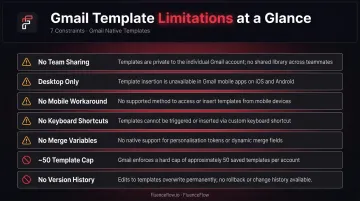
HTML and Formatting
Gmail templates are effectively plain text. To save a formatted or branded layout, you'd need to paste rendered HTML into the compose window before saving — a workaround, not a native capability.
Gmail's Layouts feature (available on paid Workspace plans) is a separate tool for branded visual emails. It's not the same as reusable templates — it serves a different purpose and uses an entirely different workflow.
When Gmail Templates Make Sense — and When They Don't
The Right Fit
Gmail templates work well for a single user sending predictable, recurring one-to-one emails. Strong use cases include:
- Support acknowledgments and status updates
- Meeting requests and scheduling follow-ups
- Invoice reminders
- Onboarding welcome notes
- Out-of-office or handoff messages
For these scenarios, the time savings are genuine and the setup cost is minimal.
Where They Break Down
Three situations where Gmail templates stop being a solution and start being a bottleneck:
- Teams: No native sharing means every person maintains their own copy. Messaging stays inconsistent, and version control is nonexistent.
- Mobile-first workers: The desktop-only restriction makes the feature practically inaccessible for anyone managing email from their phone.
- E-commerce marketing: Welcome sequences, abandoned cart recovery, post-purchase flows, browse abandonment triggers, and broadcast campaigns are categorically different from what Gmail templates can do. These aren't just more emails — they're behavioral, automated, and revenue-tracked.
What to Look For in a Step-Up Tool
Two distinct gaps call for two different solutions:
- Team sharing and mobile access: A Gmail extension with a shared template library (such as Gorgias or Superhuman) closes both gaps without leaving Gmail.
- E-commerce revenue from email: Automated flows, list segmentation, and performance attribution require a purpose-built marketing automation platform, not an inbox workaround.
The revenue difference between these two approaches is significant. According to Klaviyo's 2024 benchmark data, automated flows generate an average of $1.94 revenue per recipient versus $0.11 for broadcast campaigns. No inbox tool bridges that gap.
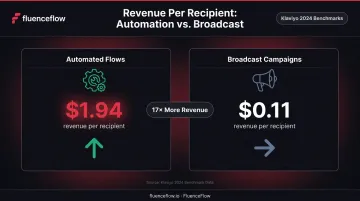
For DTC brands doing $50K+/month, that math compounds fast. FluenceFlow clients average 41% of total store revenue attributed to email and SMS, built on Klaviyo flows: welcome series, abandoned cart recovery, browse abandonment, post-purchase sequences, and replenishment reminders. That result comes from behavioral automation, segmentation, and ongoing campaign management. For a brand at $100K/month, the gap between a managed Klaviyo system and an ad-hoc inbox approach can represent $30,000–$40,000 in monthly revenue left uncaptured.
Frequently Asked Questions
Frequently Asked Questions
What happened to Gmail templates?
Gmail templates were originally called "canned responses" and renamed to "Templates" by Google. The feature works the same way — it still lives under Settings → Advanced, just under the updated name.
What are the best email templates for Gmail?
The most useful Gmail templates cover high-frequency scenarios: support acknowledgments, sales follow-ups, meeting requests, and invoice reminders. The best template matches your exact use case and includes clear placeholders so it can be personalized before sending.
Can you share Gmail templates with your team?
Gmail doesn't natively support template sharing; templates are stored per individual account. A common workaround is a shared Google Doc, though it has no version control. Third-party tools offer proper shared template libraries directly inside the inbox.
Do Gmail templates work on mobile?
Native Gmail templates are a desktop web-only feature and do not appear in the Gmail iOS or Android apps. Third-party extensions can add mobile template functionality as a workaround, though the experience varies by tool.
How many email templates can I save in Gmail?
Gmail reportedly allows around 50 templates per account before behavior becomes unreliable. Google doesn't publish an official cap, so users who need a larger library should consider a dedicated template tool.
Can I add attachments to a Gmail template?
Attachments cannot be saved directly inside a Gmail template. The practical workaround is to store the file in Google Drive and insert it as a Drive link within the template body so the link is always present when the template is used.