iPhone's SMS and Call Reporting feature exists to fight back. It lets a trusted third-party app receive reports of suspicious calls and messages directly from your device, feeding crowdsourced data into fraud databases that protect other users. The setup takes under five minutes — but the app you choose, how iOS routes your data, and what reporting actually does (versus what it doesn't) matter more than most guides explain.
This walkthrough covers every step to enable the feature, what you need beforehand, how it actually works, and what to do when things go wrong. For DTC brands running SMS marketing, there's also a critical section on how this feature affects sender reputation.
Key Takeaways
- Install a compatible reporting app first — the iOS setting won't appear until you do
- On iOS 18: Settings > Apps > Phone > SMS/Call Reporting; on older versions: Settings > Phone > SMS/Call Reporting
- Only one reporting app can be active at a time — iOS allows no exceptions
- Flagged numbers go to carriers for review; automatic blocking does not happen
- Spam reports from recipients can hurt SMS deliverability — DTC brands running campaigns need to account for this
How to Enable SMS and Call Reporting on iPhone
Step 1: Install a Compatible Third-Party Reporting App
The SMS/Call Reporting toggle only appears in Settings if a supported app is already installed. Without one, the menu shows no selectable options — which trips up a lot of users who assume the feature is broken.
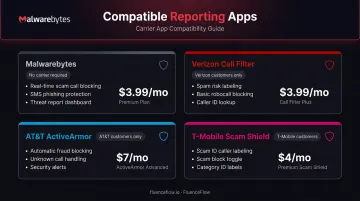
Confirmed compatible apps include:
- Malwarebytes — No carrier restriction; free app with paid Call Protection features
- Verizon Call Filter — Requires active Verizon service. Basic tier is free; Call Filter Plus starts at $3.99/month per line
- AT&T ActiveArmor — Requires AT&T service and a compatible device (iOS 16.4+). Advanced tier is $7/month
- T-Mobile Scam Shield — Requires qualifying T-Mobile service. Premium tier is $4/month per line
Download and fully set up your chosen app — including creating an account if required — before moving to the next step.
Step 2: Navigate to the Phone Settings Section
The path differs depending on your iOS version:
- iOS 18 and later: Settings > Apps > Phone
- iOS 16–17: Settings > Phone (appears directly in the main Settings list)
Not sure which iOS version you're running? Check under Settings > General > About.
Step 3: Locate SMS/Call Reporting
Scroll within Phone settings until you see SMS/Call Reporting. Tap it to open the reporting extension menu.
If this option doesn't appear, it usually means no compatible app is installed, or your iOS version is below 12.0 — Apple's reporting framework requires iOS 12.0+.
Step 4: Select Your App and Enable the Extension
Tap the app you want to use in the SMS/Call Reporting menu, then tap Enable in the confirmation prompt that appears.
Keep these details in mind:
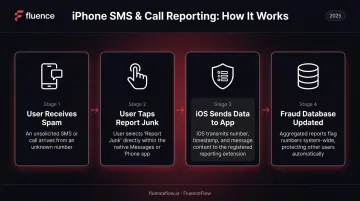
- Per Apple's API documentation, granting this permission lets the app receive the sender's phone number, timestamp, and potentially the full SMS message body for reported communications
- The extension only activates when you actively report a message or call; it doesn't passively read all your messages
- You can reverse this at any time by returning to the same Settings screen and toggling the app off
What You Need Before Enabling SMS and Call Reporting
Before opening Settings, confirm you have three things in place — missing any one of them is the most common reason the option doesn't appear.
iOS and Device Requirements
Apple's IdentityLookup framework — the underlying API — requires iOS 12.0 or later. All versions from iOS 13 through iOS 18 fully support it. Some carrier apps set a higher bar: AT&T ActiveArmor Advanced, for example, requires iOS 16.4+.
Compatible App Installed and Configured
The app must be downloaded and fully configured before you open Settings. If an account is required — Verizon Call Filter ties directly to your Verizon account, for instance — complete registration first. The reporting toggle won't appear until the app is ready.
Carrier and Plan Considerations
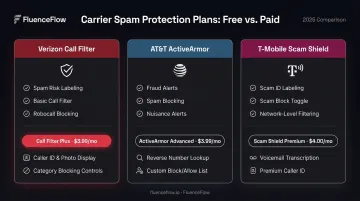
| Service | Free Features | Paid Tier |
|---|---|---|
| Verizon Call Filter | Spam screening, reporting | Plus: $3.99/mo per line (Caller Name ID, block lists) |
| AT&T ActiveArmor | Fraud blocking, breach alerts | Advanced: $7/mo (identity monitoring, Wi-Fi protection) |
| T-Mobile Scam Shield | Scam Likely ID, personal blocking | Premium: $4/mo per line (category controls, number lookup) |
If you're on a carrier network, check whether your plan already includes a reporting-capable app before paying for a separate third-party subscription.
Key Variables That Affect How Well It Works
Enabling the setting is only half the equation. These factors determine whether it actually protects you.
App and Database Quality
The feature's effectiveness depends entirely on the third-party app's fraud database. Apps backed by large subscriber bases benefit from more crowdsourced data — meaning flagged numbers get identified faster.
Hiya analyzed nearly 20 billion suspected spam calls across 42 countries in just the first half of 2024. Apps with smaller networks simply can't match that detection speed.
What Data Gets Shared When You Report
When you actively report a call or message, Apple's API exposes the following to the enabled extension:
- Sender — phone number or email address
- Date received — timestamp of the communication
- Message body — the full SMS content (per Apple's
messageBodyAPI property)
Not every app uploads all of these fields to its servers. Review each app's privacy policy to understand what's actually transmitted.
For DTC brands, this has real deliverability consequences. If a subscriber reports a legitimate SMS campaign as spam, that sender number gets flagged in the app's fraud database. A pattern of reports can damage your sending reputation at the carrier level and trigger carrier-level blocking. Klaviyo recommends keeping SMS unsubscribe rates below 2% — spam reports compound that same problem.
Campaigns built around genuine consent, tight segmentation, and appropriate cadence produce far fewer reports than generic broadcast blasts. The underlying goal is subscribers who actually want to hear from you.
One App Limit Enforced by iOS
iOS permits exactly one active SMS/Call Reporting extension at a time. If you install multiple compatible apps, only the one you've selected in Settings is active. Many users assume all installed apps are reporting simultaneously — they're not. Switching apps requires disabling the current one first.
User Reporting Behavior
The feature only improves fraud databases when users actively report suspicious numbers. Simply enabling the extension without ever tapping "Report Junk" on a message provides minimal benefit beyond what the app already auto-flags. The crowdsourced model depends on participation.
Common Mistakes, Troubleshooting, and Alternatives
Common Mistakes
Skipping app installation first: This is the most frequent setup error. Users navigate to SMS/Call Reporting in Settings, see no options, and assume the feature doesn't exist on their device. The app must be installed and configured before the menu populates.
Assuming it blocks spam automatically: Enabling reporting doesn't filter or block incoming messages. You'll still receive the spam — the feature flags the number in the app's database for future identification. In-app blocking, if available, must be configured separately within your chosen app.
If your setup looks right but something still isn't working, the fixes below cover the most common culprits.
Troubleshooting Common Issues
SMS/Call Reporting is missing from Settings:
- Check your iOS version: Settings > General > About
- Verify a compatible app is installed and fully set up
- On iOS 18, confirm you're navigating to Settings > Apps > Phone (not Settings > Phone directly)
Extension is enabled but spam still comes through: This is expected behavior. Reporting contributes data to the fraud database over time; it won't stop that number from reaching you again right away. For active blocking, enable in-app call/message blocking within your chosen app separately from the iOS reporting extension.
Alternatives Worth Considering
- Carrier-level spam filtering (T-Mobile Scam Shield, AT&T ActiveArmor): Works at the network level without a third-party app. Provides automatic blocking but gives you less control over what gets flagged
- Report to the FTC or FCC: File with the FTC or the FCC to support regulatory enforcement. This won't protect you immediately, but it contributes to legal action against repeat offenders
- Silence Unknown Callers: Found under Settings > Apps (iOS 18) or Settings > Phone > Silence Unknown Callers. Silences all calls from numbers not in your contacts. Simpler to set up, but it also mutes legitimate callers like delivery drivers and doctors' offices
Frequently Asked Questions
What does SMS Call Reporting mean on iPhone?
SMS/Call Reporting lets a trusted third-party app receive your reports of suspicious calls and messages directly from iOS. That data feeds into the app's fraud database to help protect other users — it doesn't block anything on your phone by itself.
Which apps are compatible with iPhone's SMS/Call Reporting feature?
Malwarebytes and Verizon Call Filter are officially confirmed to support Apple's IdentityLookup extension. AT&T ActiveArmor and T-Mobile Scam Shield offer reporting through their own in-app mechanisms, but neither carrier has officially documented integration with Apple's extension.
Does enabling SMS/Call Reporting share my text message content with a third party?
Apple's API exposes the full SMS message body, sender's phone number, and timestamp to the enabled extension for messages you actively report. What each app transmits to its own servers varies, so check your chosen app's privacy policy for specifics.
Can I enable more than one SMS/Call Reporting app at a time?
No. iOS enforces a one-app limit. To switch, go to Settings > Apps > Phone > SMS/Call Reporting (iOS 18) or Settings > Phone > SMS/Call Reporting (iOS 13–17), disable the current app, then select the new one.
What happens after I report a spam call or text?
The app's fraud team receives the reported number, investigates it, and may add it to their flagged or blocked database. This helps protect other users over time, but it doesn't prevent that number from reaching you again.
How do I turn off SMS/Call Reporting on iPhone?
Go to Settings > Apps > Phone > SMS/Call Reporting (iOS 18) or Settings > Phone > SMS/Call Reporting (older iOS). Tap the currently enabled app and toggle it off. This disables the extension without uninstalling the app.